> ## Documentation Index
> Fetch the complete documentation index at: https://docs.scoutqa.ai/llms.txt
> Use this file to discover all available pages before exploring further.
# Credentials
> Pre-configure test credentials so Scout can authenticate during explorations.
Credentials let you store reusable authentication details that Scout uses when it encounters login forms or protected areas during testing. Instead of getting blocked at sign-in screens, Scout can automatically apply the right credentials and continue exploring your application.
**Security Notice**: Credentials are stored and transmitted as plain text so that Scout can use them during test execution. Only use test credentials created specifically for QA purposes. Never add production passwords, personal accounts, or sensitive API keys.
## Why use credentials
When Scout explores your application, it may encounter:
* Login forms that block access to authenticated pages
* API endpoints requiring authentication headers
* Protected admin areas or user dashboards
By pre-configuring credentials, Scout can seamlessly authenticate and provide comprehensive coverage of your entire application—not just the public-facing pages.
## Supported credential types
### Basic authentication
Use basic auth credentials for standard username/password login forms. Scout will automatically detect login pages and fill in the credentials you provide.
A friendly name to identify this credential set (e.g., "Test Admin Account", "QA User").
The username or email for the test account.
The password for the test account.
Optional context about when to use this credential or any relevant details.
## Creating credentials
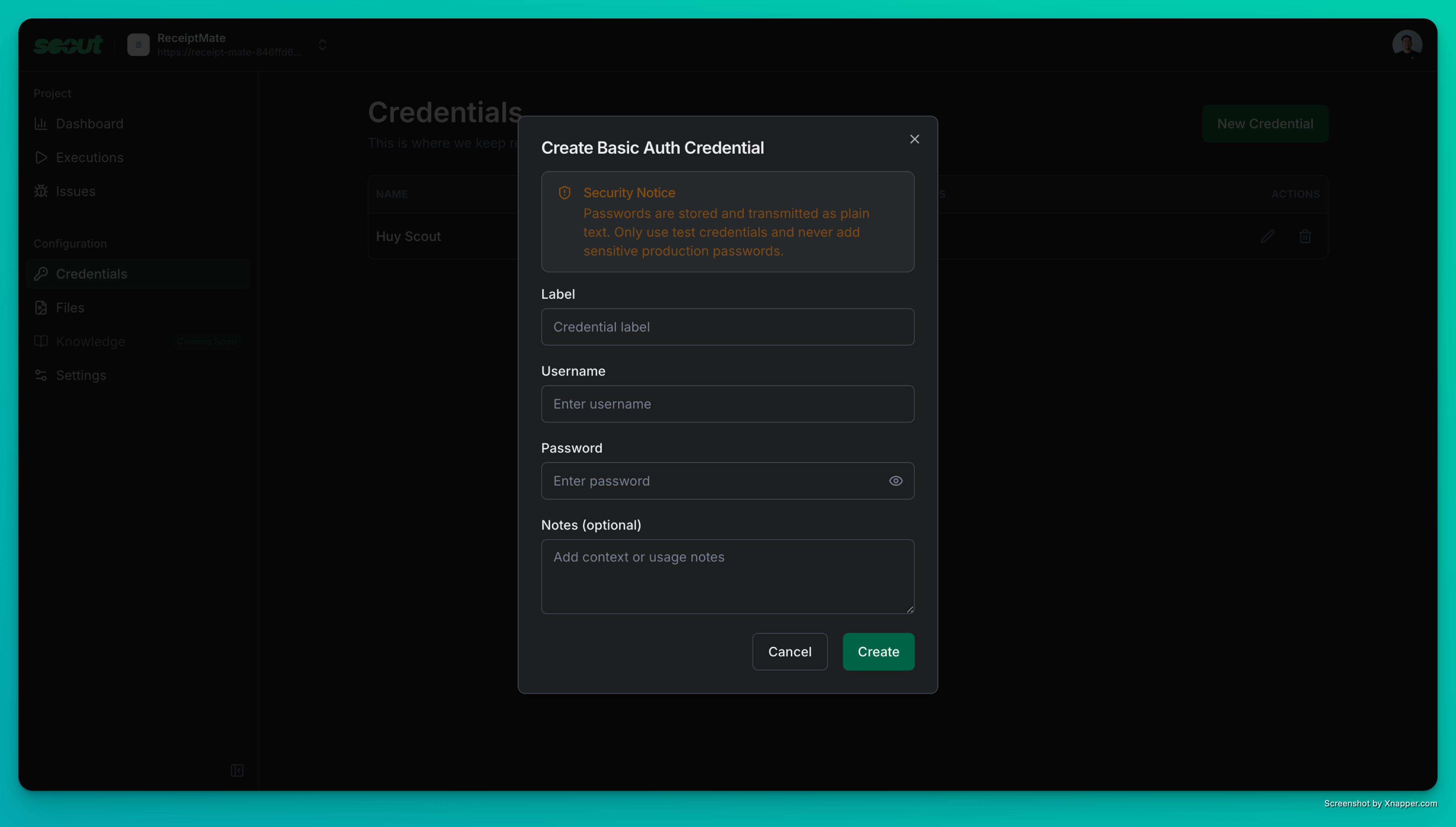 1. Navigate to your project settings
2. Select the **Credentials** tab
3. Click **New Credential**
4. Choose the credential type (Basic Auth)
5. Fill in the required fields
6. Click **Create**
## Best practices
Set up accounts specifically for Scout testing rather than using personal or shared credentials. This keeps your test data isolated and makes it easy to reset if needed.
Name credentials clearly so you know which account does what. For example: "Admin - Full Access", "Standard User - Limited", "Guest - Read Only".
Use the notes field to document which areas of the app require this credential, any special permissions the account has, or rotation schedules.
Even for test accounts, update passwords periodically. Delete credentials you no longer need to keep your project tidy.
## How Scout uses credentials
During an exploration, Scout:
1. Detects authentication requirements (login forms, 401 responses, etc.)
2. Matches the context to available credentials in your project
3. Automatically fills and submits login forms
4. Continues exploring authenticated areas of your application
5. Reports any authentication failures as issues
Scout will attempt to use credentials intelligently based on the context. If you have multiple credentials, consider using clear labels and notes to help Scout select the right one.
## Managing credentials
1. Navigate to your project settings
2. Select the **Credentials** tab
3. Click **New Credential**
4. Choose the credential type (Basic Auth)
5. Fill in the required fields
6. Click **Create**
## Best practices
Set up accounts specifically for Scout testing rather than using personal or shared credentials. This keeps your test data isolated and makes it easy to reset if needed.
Name credentials clearly so you know which account does what. For example: "Admin - Full Access", "Standard User - Limited", "Guest - Read Only".
Use the notes field to document which areas of the app require this credential, any special permissions the account has, or rotation schedules.
Even for test accounts, update passwords periodically. Delete credentials you no longer need to keep your project tidy.
## How Scout uses credentials
During an exploration, Scout:
1. Detects authentication requirements (login forms, 401 responses, etc.)
2. Matches the context to available credentials in your project
3. Automatically fills and submits login forms
4. Continues exploring authenticated areas of your application
5. Reports any authentication failures as issues
Scout will attempt to use credentials intelligently based on the context. If you have multiple credentials, consider using clear labels and notes to help Scout select the right one.
## Managing credentials
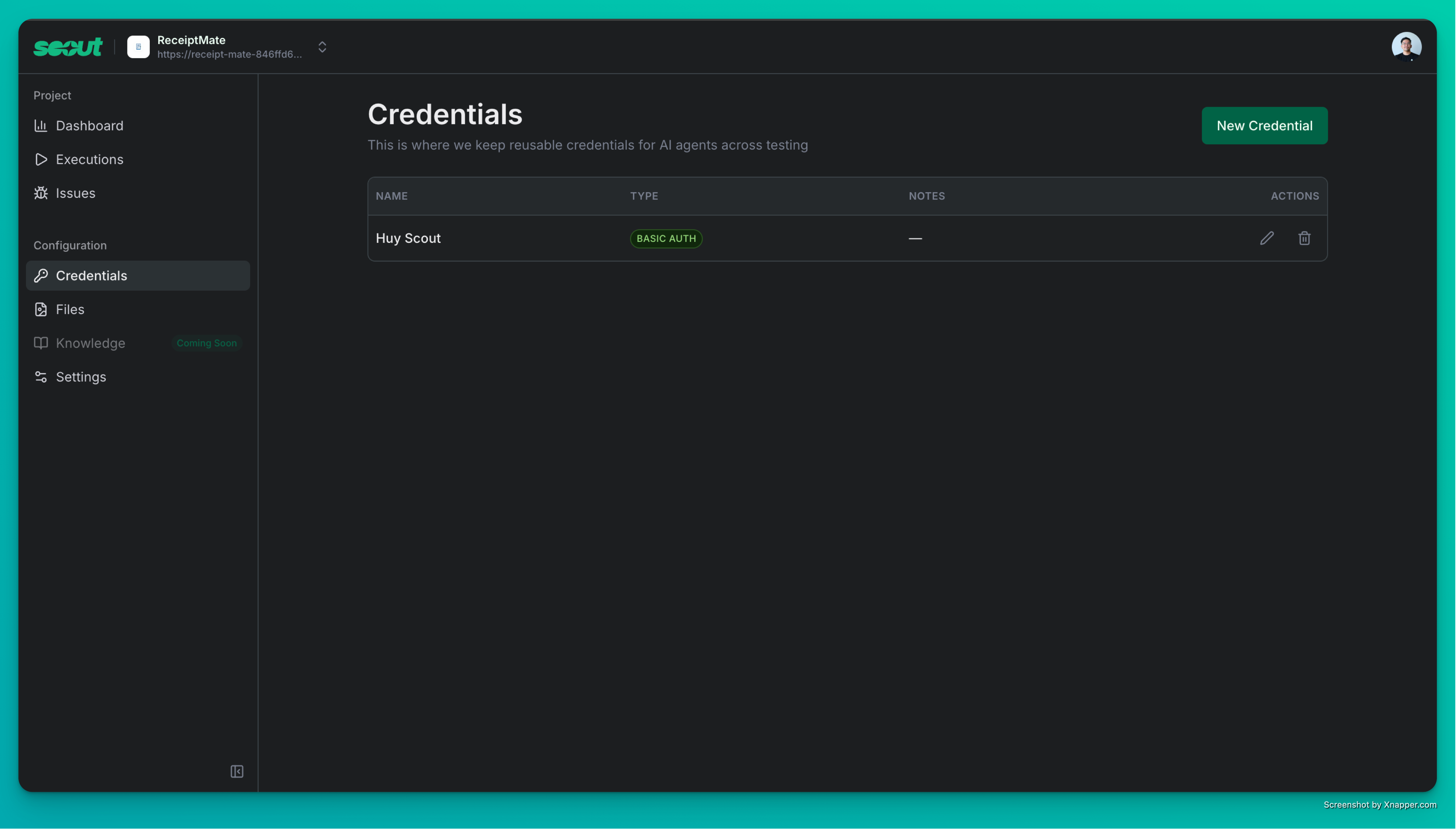 From the credentials list, you can:
* **Edit** existing credentials to update usernames, passwords, or notes
* **Delete** credentials you no longer need
* View when each credential was created and last updated
Changes take effect immediately for any new explorations. Running explorations will continue using the credentials they started with.
From the credentials list, you can:
* **Edit** existing credentials to update usernames, passwords, or notes
* **Delete** credentials you no longer need
* View when each credential was created and last updated
Changes take effect immediately for any new explorations. Running explorations will continue using the credentials they started with.