> ## Documentation Index
> Fetch the complete documentation index at: https://docs.scoutqa.ai/llms.txt
> Use this file to discover all available pages before exploring further.
# Projects
> Keep every product, execution, and report organized with multi-project workspaces.
Projects group explorations, personas, and reports by product so fast-moving teams can keep quality work focused. Each project lives inside a workspace and comes with its own dashboard, execution history, and settings.
## Navigate with the project switcher
* Open the project switcher from the global navigation to jump between products without leaving the page you are on.
* Create a new project whenever you need coverage for another environment, brand, or major feature area.
* Scout remembers your last selection so relaunching an exploration always starts in the right context.
 ## Project dashboards
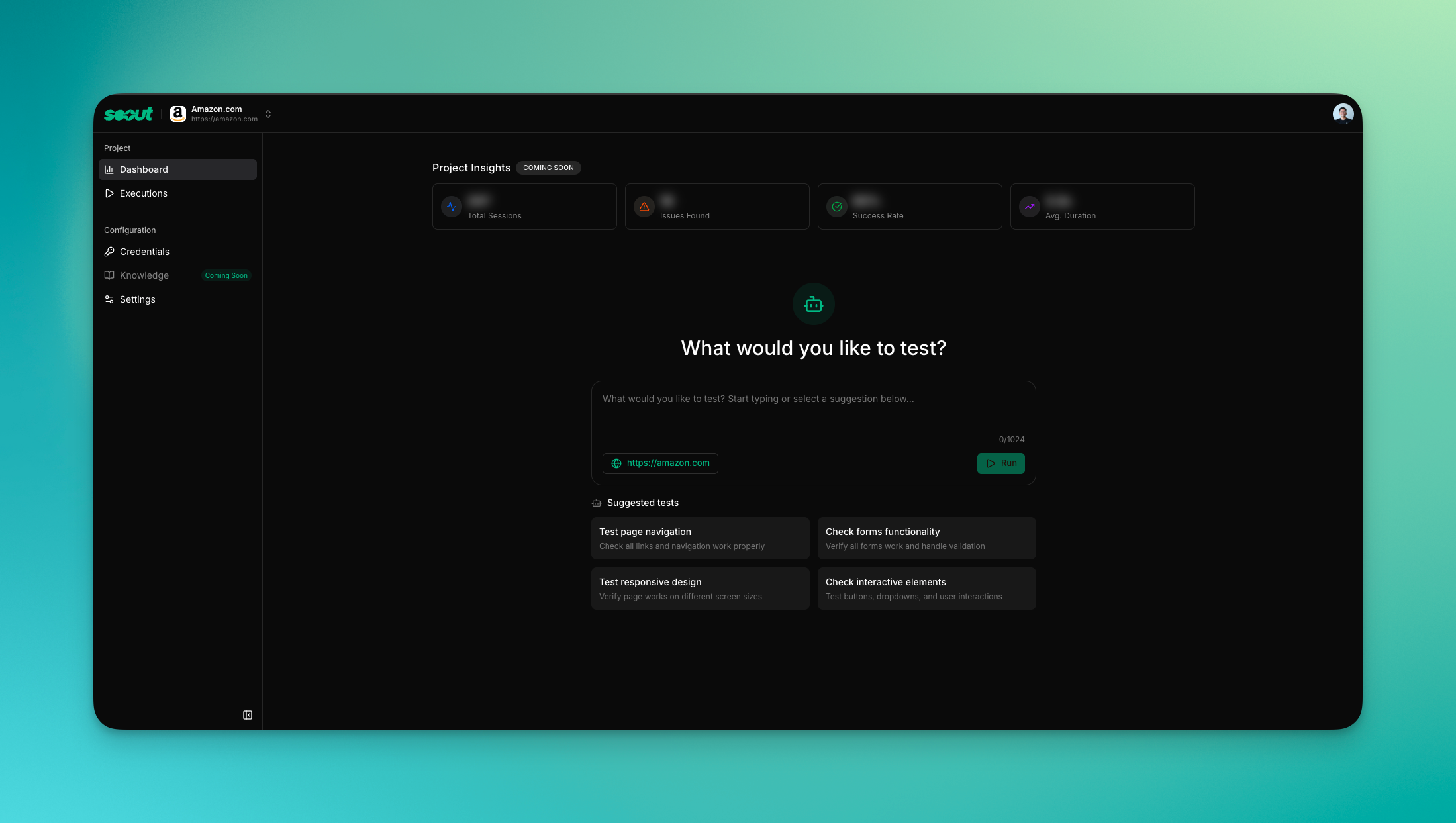
Project dashboards surface the current health of a product and provide one-click access to new runs.
## Project dashboards
Project dashboards surface the current health of a product and provide one-click access to new runs.
 ### Key capabilities
* Launch fresh explorations directly from the dashboard.
* Review a summarized activity feed before diving into a specific execution.
* Track completion status, duration, and personas for recent runs.
### Execution controls
* Search executions by URL or run title to find prior coverage quickly.
* Filter by status—completed, running, queued, failed, or canceled—to focus on the work that matters now.
* Rerun prior executions with a single click or share read-only results via `/t/{executionId}` links.
## Project settings
Use the settings tab inside a project to keep metadata accurate and clean up stale work.
Update the name shown in navigation and reports. Great for differentiating staging versus production projects.
Set or adjust the primary domain Scout should explore. Changing the URL triggers automatic metadata refresh.
Upload a logo if you want to override the favicon and title that Scout fetched automatically.
Removing a project deletes its executions and reports. Export anything you need before proceeding.
## Automated metadata
Scout fetches titles, descriptions, and favicons for you during onboarding and whenever you update a project's base URL. If you need the same enrichment in other systems, call the `/api/v1/meta` endpoint to retrieve the metadata programmatically.
### Key capabilities
* Launch fresh explorations directly from the dashboard.
* Review a summarized activity feed before diving into a specific execution.
* Track completion status, duration, and personas for recent runs.
### Execution controls
* Search executions by URL or run title to find prior coverage quickly.
* Filter by status—completed, running, queued, failed, or canceled—to focus on the work that matters now.
* Rerun prior executions with a single click or share read-only results via `/t/{executionId}` links.
## Project settings
Use the settings tab inside a project to keep metadata accurate and clean up stale work.
Update the name shown in navigation and reports. Great for differentiating staging versus production projects.
Set or adjust the primary domain Scout should explore. Changing the URL triggers automatic metadata refresh.
Upload a logo if you want to override the favicon and title that Scout fetched automatically.
Removing a project deletes its executions and reports. Export anything you need before proceeding.
## Automated metadata
Scout fetches titles, descriptions, and favicons for you during onboarding and whenever you update a project's base URL. If you need the same enrichment in other systems, call the `/api/v1/meta` endpoint to retrieve the metadata programmatically.
 ## Best practices
* Create separate projects for each major surface area (marketing site, app, admin) so dashboards stay focused.
* Use the status filters to keep an eye on runs that are still in progress before big launches.
* Duplicate high-signal executions into new missions when you discover a regression worth tracking.
* Schedule regular reviews of project settings to retire old environments and keep navigation tidy.
## Best practices
* Create separate projects for each major surface area (marketing site, app, admin) so dashboards stay focused.
* Use the status filters to keep an eye on runs that are still in progress before big launches.
* Duplicate high-signal executions into new missions when you discover a regression worth tracking.
* Schedule regular reviews of project settings to retire old environments and keep navigation tidy.