> ## Documentation Index
> Fetch the complete documentation index at: https://docs.scoutqa.ai/llms.txt
> Use this file to discover all available pages before exploring further.
# Quick Start - Test Your Lovable, Replit, V0, or Base44 App
> Find bugs in your Lovable, Replit, V0, or Base44 app in under 5 minutes. No setup required. Perfect for solo founders, vibe coders, and side projects.
## Two ways to start
Scout offers two paths to get quality feedback fast—pick the one that fits your workflow.
Transform your app URL and get results immediately. Zero setup.
Create a project for ongoing coverage, history, and team collaboration.
***
## Option 1: Instant URL (30 seconds)
The fastest way to see Scout in action. Perfect for quick checks during development.
Locate your deployed application URL (works with Lovable, Replit, and more).
Insert `.scoutqa` before `.app` in your domain:
| Platform | Original URL | Scout URL |
| -------- | ------------------- | --------------------------- |
| Lovable | `myapp.lovable.app` | `myapp.lovable.scoutqa.app` |
| Replit | `myapp.replit.app` | `myapp.replit.scoutqa.app` |
Open the Scout URL in your browser. Scout automatically begins exploring and reports findings within minutes.
Bookmark your Scout URL for one-click quality checks anytime you push changes.
***
## Option 2: Full Dashboard (5 minutes)
Create a project to track explorations over time, collaborate with your team, and configure custom personas.
### Step 1: Sign in
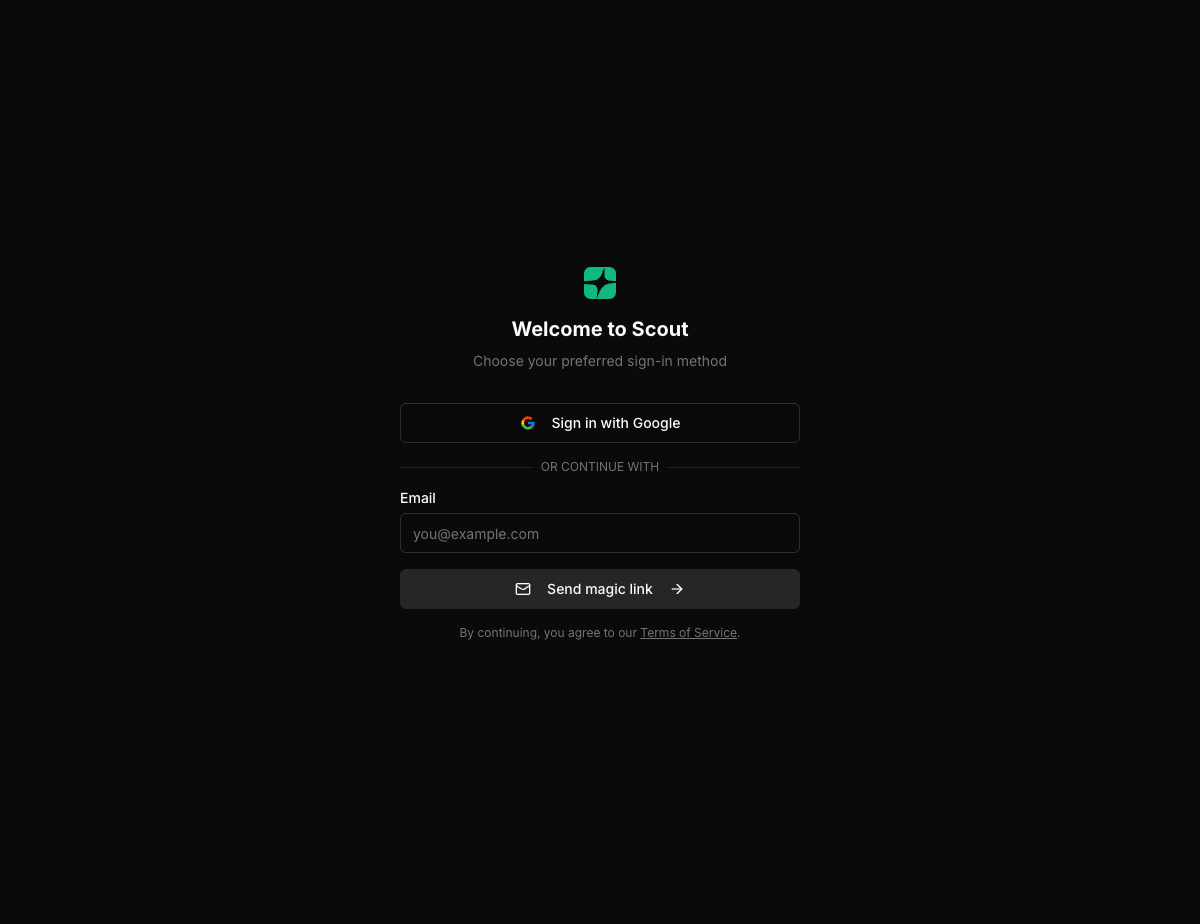 One-click authentication with your Google account. No passwords to manage.
Enter your email to receive a magic link. Click it to sign in instantly—no password needed.
### Step 2: Create your first project
One-click authentication with your Google account. No passwords to manage.
Enter your email to receive a magic link. Click it to sign in instantly—no password needed.
### Step 2: Create your first project
 Enter the primary URL you want Scout to explore (e.g., `https://myapp.com` or `https://staging.myapp.com`).
Scout automatically fetches your app's name, description, and favicon. Adjust if needed.
Click **Create** and you'll land on your project dashboard, ready to launch.
### Step 3: Configure the mission
Before launching, tell Scout how to explore your app.
Select who Scout should emulate during exploration:
| Persona | What Scout does |
| ------------------------- | ------------------------------------------------- |
| **General User** | Tests typical workflows like a first-time visitor |
| **Power User** | Exercises advanced features and edge cases |
| **Security Tester** | Hunts for vulnerabilities and auth issues |
| **Accessibility Auditor** | Checks for a11y issues affecting all users |
Define what success looks like: completing onboarding, finishing checkout, exploring settings, etc.
Specify areas Scout should avoid: payment flows, admin actions, or any sensitive sections.
### Step 4: Launch the exploration
Enter the primary URL you want Scout to explore (e.g., `https://myapp.com` or `https://staging.myapp.com`).
Scout automatically fetches your app's name, description, and favicon. Adjust if needed.
Click **Create** and you'll land on your project dashboard, ready to launch.
### Step 3: Configure the mission
Before launching, tell Scout how to explore your app.
Select who Scout should emulate during exploration:
| Persona | What Scout does |
| ------------------------- | ------------------------------------------------- |
| **General User** | Tests typical workflows like a first-time visitor |
| **Power User** | Exercises advanced features and edge cases |
| **Security Tester** | Hunts for vulnerabilities and auth issues |
| **Accessibility Auditor** | Checks for a11y issues affecting all users |
Define what success looks like: completing onboarding, finishing checkout, exploring settings, etc.
Specify areas Scout should avoid: payment flows, admin actions, or any sensitive sections.
### Step 4: Launch the exploration
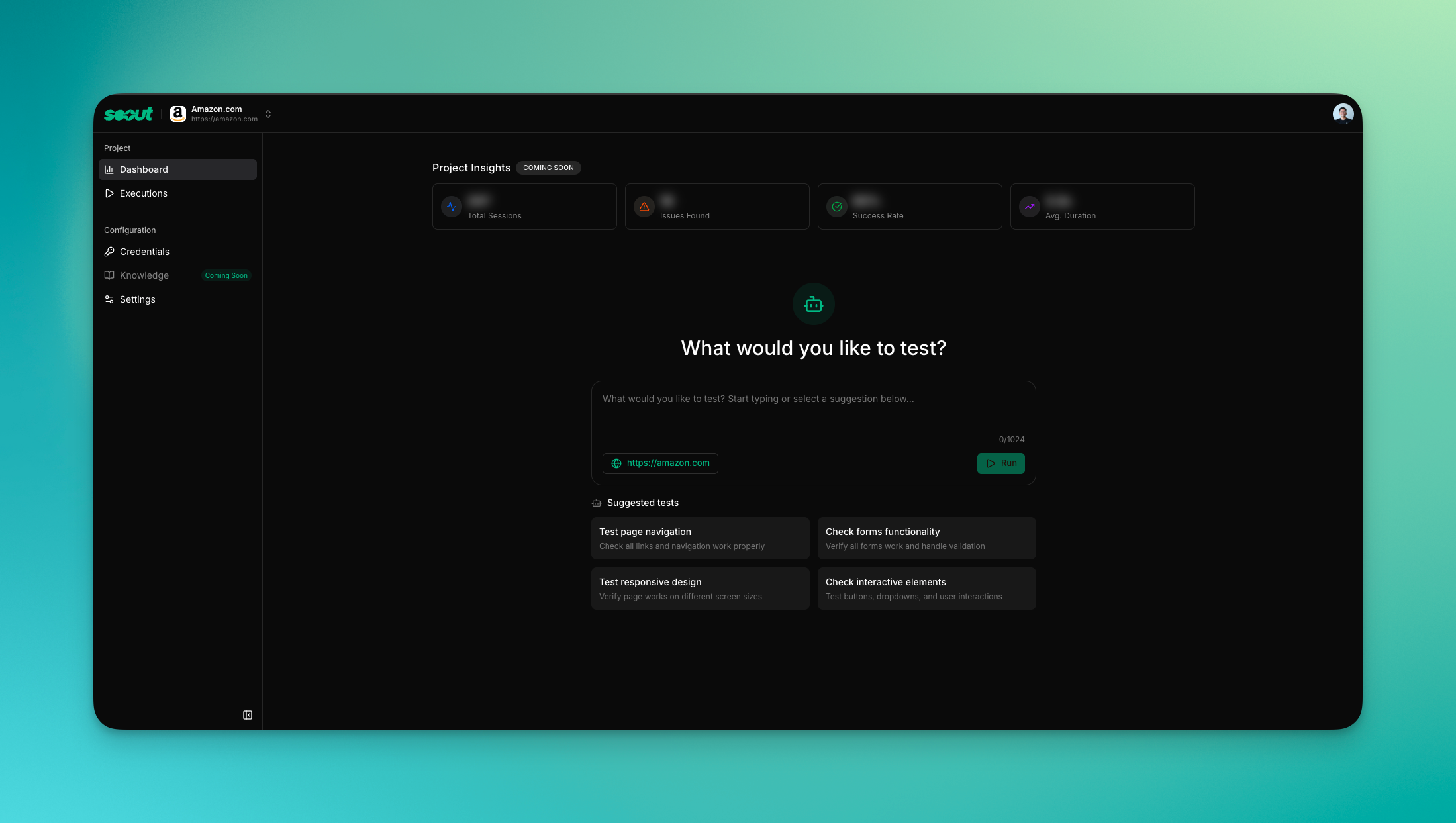 Click **Launch Scout** from your project dashboard. The exploration typically completes in 5-10 minutes.
Watch Scout work in real-time via the live transcript, or close the tab—results will be waiting when you return.
### Step 5: Review findings
Click **Launch Scout** from your project dashboard. The exploration typically completes in 5-10 minutes.
Watch Scout work in real-time via the live transcript, or close the tab—results will be waiting when you return.
### Step 5: Review findings
 Scout delivers a structured report with:
* **Issues organized by severity** — Critical, High, Medium, Low
* **Screenshots** — Visual proof of what Scout encountered
* **Reproduction steps** — Exact actions to recreate each issue
* **Suggested fixes** — Recommendations to resolve problems
Generate a public link (`/t/{executionId}`) to share findings with anyone—no login required.
Tag team members on specific issues to track resolution.
***
## What Scout explores
During each exploration, Scout:
Scout delivers a structured report with:
* **Issues organized by severity** — Critical, High, Medium, Low
* **Screenshots** — Visual proof of what Scout encountered
* **Reproduction steps** — Exact actions to recreate each issue
* **Suggested fixes** — Recommendations to resolve problems
Generate a public link (`/t/{executionId}`) to share findings with anyone—no login required.
Tag team members on specific issues to track resolution.
***
## What Scout explores
During each exploration, Scout:
**Functionality**
* Navigates pages like a real user
* Fills out and submits forms
* Tests authentication flows
* Clicks buttons and interactive elements
**Quality checks**
* Usability friction and confusing UI
* Broken links and missing pages
* Console errors and API failures
* Performance bottlenecks
* Accessibility violations
* Security red flags
***
## Scheduling recurring explorations
Set up automated runs to catch regressions before users do.
Navigate to your project and click the **Schedules** tab.
Choose frequency (daily, weekly, or custom), select a persona, and save.
Enable email notifications to receive a summary after each scheduled run.
Scheduling is available from your [project dashboard](/essentials/schedules). Perfect for staging environments before each deploy.
***
## Next steps
Organize explorations by product or environment.
View run history and relaunch past explorations.
Track, triage, and resolve discovered issues.
***
## FAQ
Most explorations complete in 5-10 minutes, depending on your app's size and complexity.
No. The Instant URL approach works immediately with no setup. The dashboard requires only a free account.
Yes. Use the [Credentials](/essentials/credentials) feature to provide login details, or share a pre-authenticated session.
Scout doesn't store sensitive data. Explorations are ephemeral, and you control what pages Scout can access.
Scout works with any publicly accessible web app. The Instant URL pattern currently supports Lovable and Replit, with more platforms coming soon.
Yes. Use the Instant URL in GitHub Actions, GitLab CI, or any automation tool. API access is coming soon.
Every exploration generates a shareable link (`/t/{executionId}`). Recipients can view findings without creating an account.
***
## Need help?
Stuck or have questions? Reach out and we'll get you unblocked fast.