

Why use credentials
When Scout explores your application, it may encounter:- Login forms that block access to authenticated pages
- API endpoints requiring authentication headers
- Protected admin areas or user dashboards
Supported credential types
Basic authentication
Use basic auth credentials for standard username/password login forms. Scout will automatically detect login pages and fill in the credentials you provide.string
required
A friendly name to identify this credential set (e.g., “Test Admin Account”, “QA User”).
string
required
The username or email for the test account.
string
required
The password for the test account.
string
Optional context about when to use this credential or any relevant details.
Creating credentials
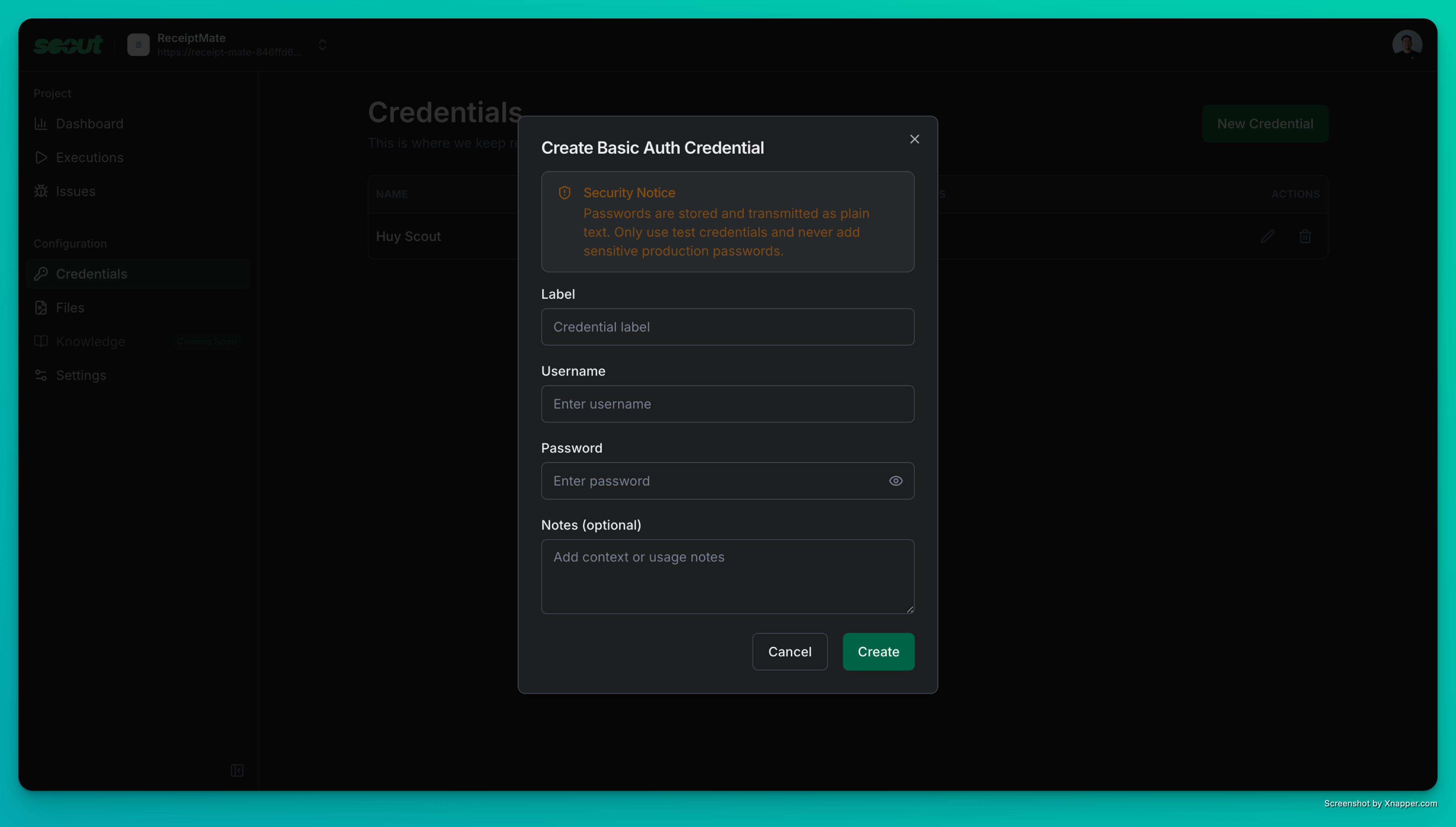
- Navigate to your project settings
- Select the Credentials tab
- Click New Credential
- Choose the credential type (Basic Auth)
- Fill in the required fields
- Click Create
Best practices
Create dedicated test accounts
Create dedicated test accounts
Set up accounts specifically for Scout testing rather than using personal or shared credentials. This keeps your test data isolated and makes it easy to reset if needed.
Use descriptive labels
Use descriptive labels
Name credentials clearly so you know which account does what. For example: “Admin - Full Access”, “Standard User - Limited”, “Guest - Read Only”.
Add notes for context
Add notes for context
Use the notes field to document which areas of the app require this credential, any special permissions the account has, or rotation schedules.
Rotate credentials regularly
Rotate credentials regularly
Even for test accounts, update passwords periodically. Delete credentials you no longer need to keep your project tidy.
How Scout uses credentials
During an exploration, Scout:- Detects authentication requirements (login forms, 401 responses, etc.)
- Matches the context to available credentials in your project
- Automatically fills and submits login forms
- Continues exploring authenticated areas of your application
- Reports any authentication failures as issues
Scout will attempt to use credentials intelligently based on the context. If you have multiple credentials, consider using clear labels and notes to help Scout select the right one.
Managing credentials
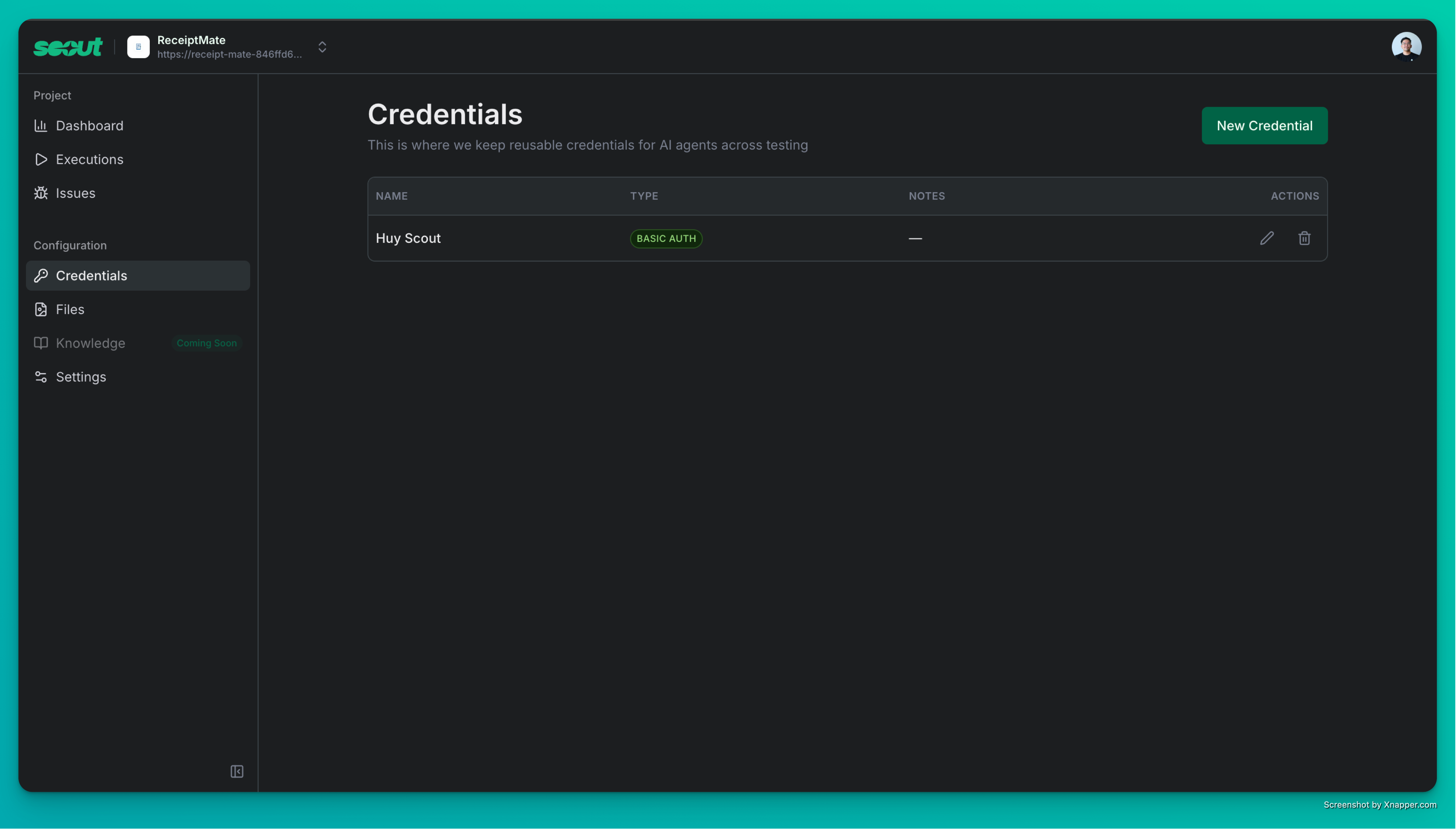
- Edit existing credentials to update usernames, passwords, or notes
- Delete credentials you no longer need
- View when each credential was created and last updated