

Execution list
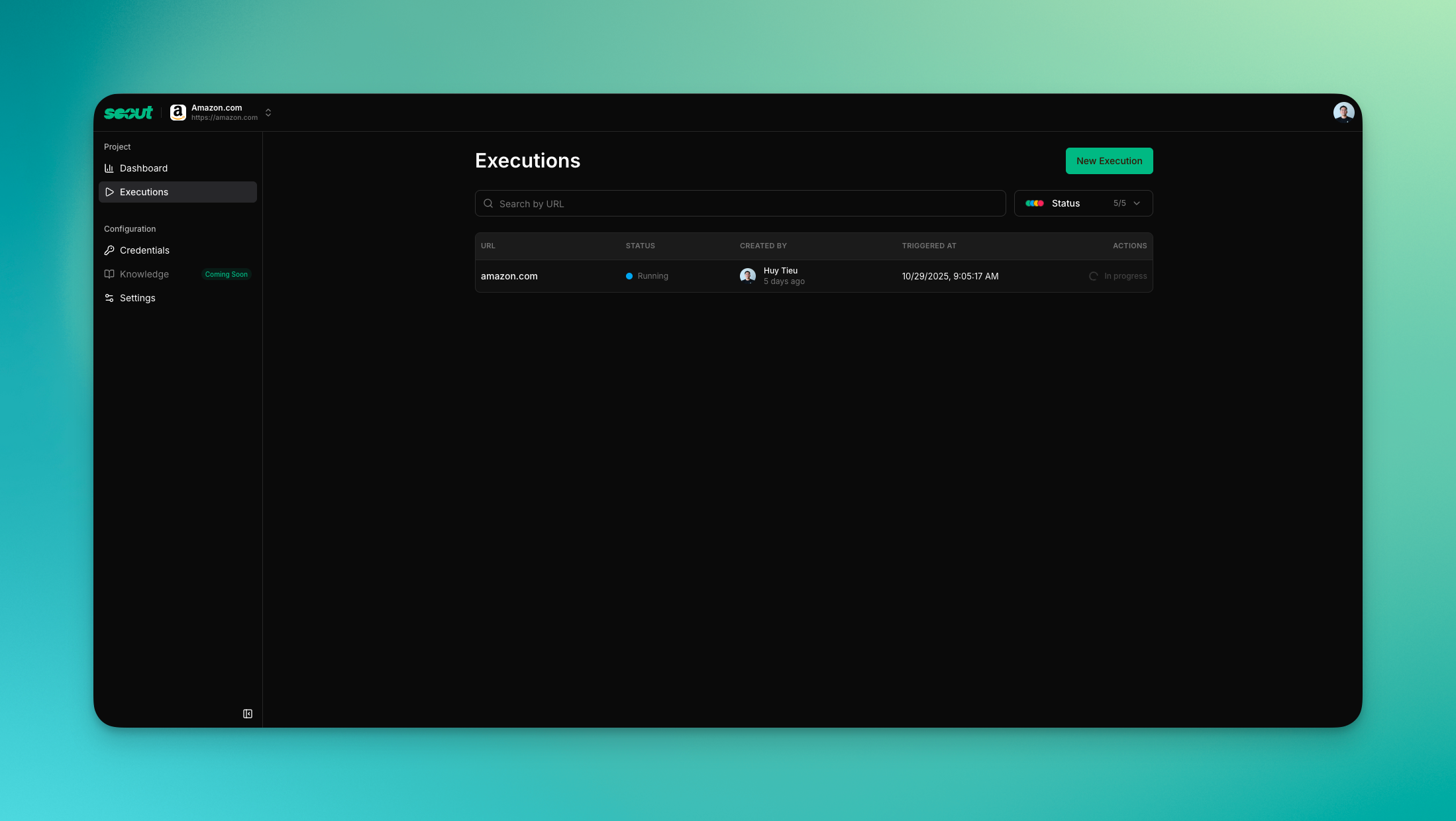
- Sort through the latest activity across the project, with status chips that highlight completed, running, queued, failed, or canceled runs.
- Search by URL or execution title to surface prior coverage when you are validating a regression fix.
- Open any execution to inspect the live transcript, download the structured report, or copy the public
/t/{executionId}link.
Use filters before big launches to make sure there are no runs stuck in the queue or waiting for credentials.
Start a new execution
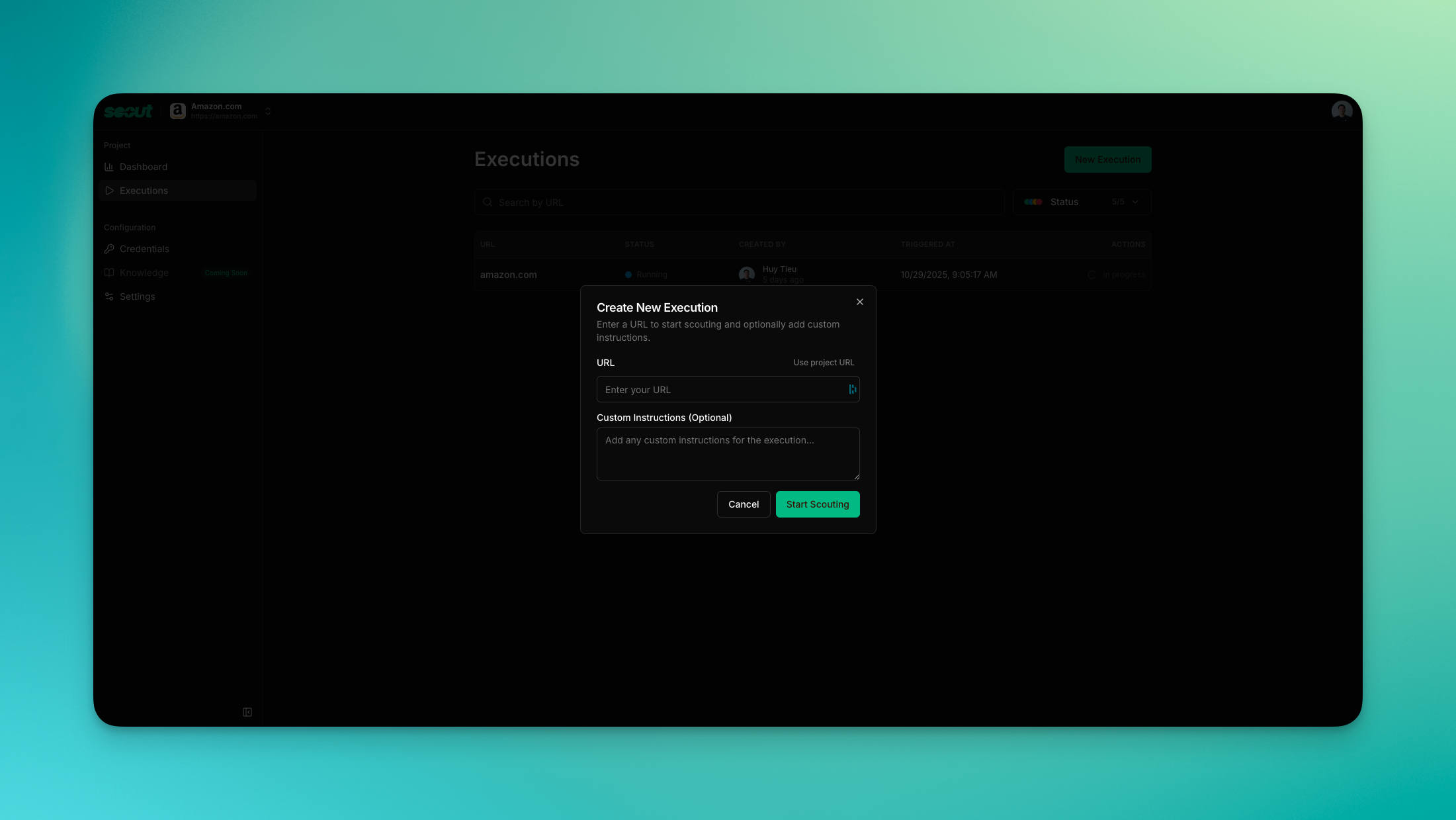
- Click New execution to launch a guided mission from anywhere in the project.
- Drop in the URL you want Scout to explore, tweak the objective, and confirm the persona or environment.
- Kick off the run immediately, or duplicate a previous execution as a starting point when you need consistent coverage.
Testing modes
Scout offers three testing modes. Choose the one that matches your intent:Smart (default)
Describe what you want to test in natural language. Scout interprets your intent and picks the right workflow, depth, and tools automatically.
Quick
Fast scan with minimal depth. Best for quick sanity checks and smoke tests when you need results in minutes.
Deep
Thorough, comprehensive testing. Explores edge cases, tests multiple paths, and produces detailed findings.
Smart Mode — intent-based testing
Smart Mode is the default and recommended way to run tests. Instead of choosing a depth level, just describe what you need:- “Test the checkout flow as a first-time mobile user” → Scout runs a focused deep test with a persona
- “Smoke test login, signup, and password reset” → Scout runs a quick smoke test across three flows
- “Verify the cart total bug is fixed” → Scout runs a targeted verification workflow
- “Check WCAG compliance on the dashboard” → Scout runs an accessibility audit
- “Explore the settings page for UX issues” → Scout runs exploratory testing
Execution in progress
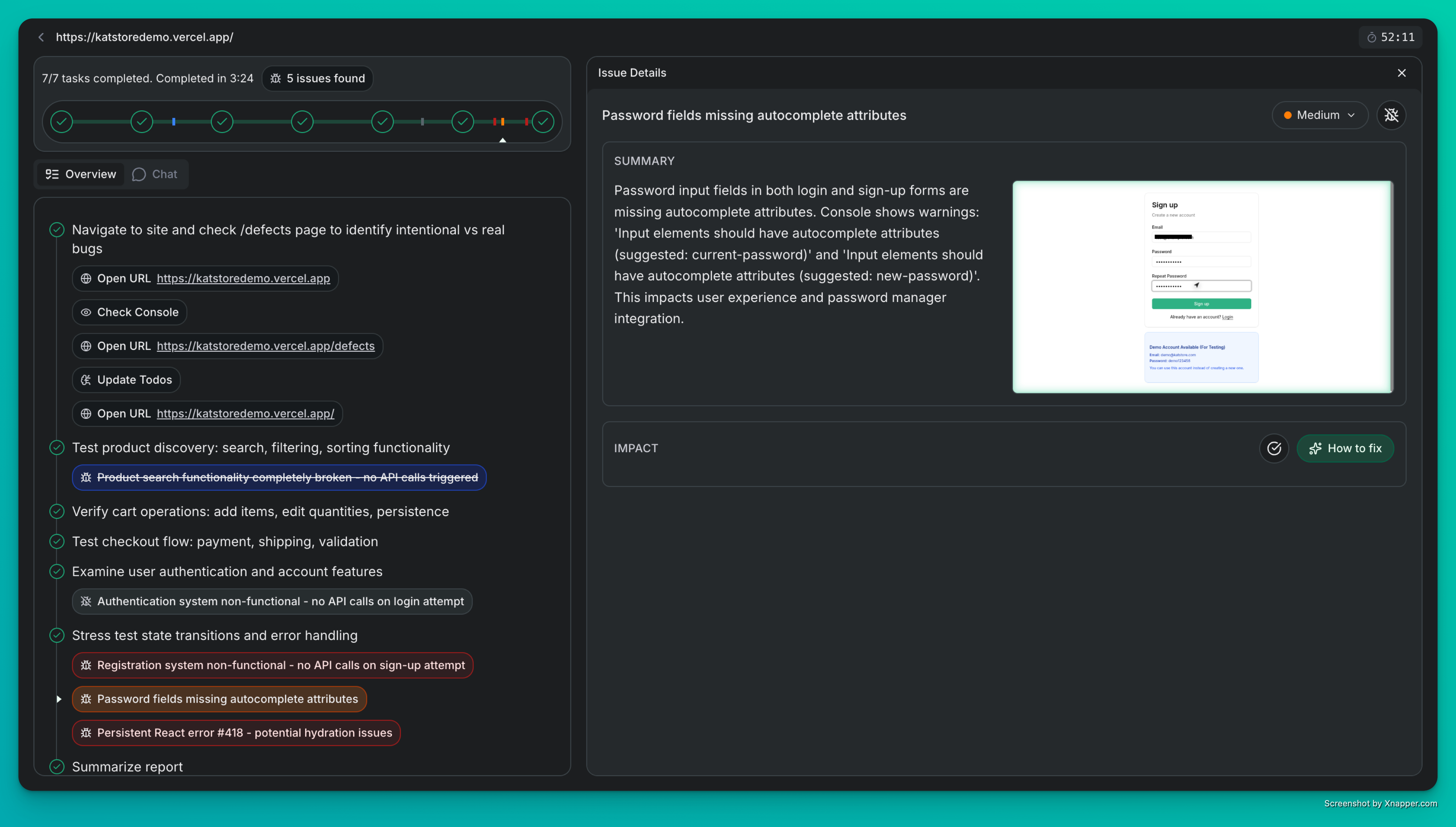
- A visual progress indicator tracking Scout’s journey through your app
- Live transcript of actions, observations, and discovered issues
- Issue details panel with summary, impact, and fix suggestions
New executions inherit project defaults—environment, guardrails, integrations—so teams stay aligned even when multiple people launch runs.