

Why use files
Many applications include file upload functionality:- Profile picture uploads
- Document attachment forms
- Image galleries and media libraries
- Receipt or invoice scanning features
Supported file types
Scout currently supports image uploads:Maximum file size is 5 MB per image. Files larger than this will be rejected during upload.
Uploading files
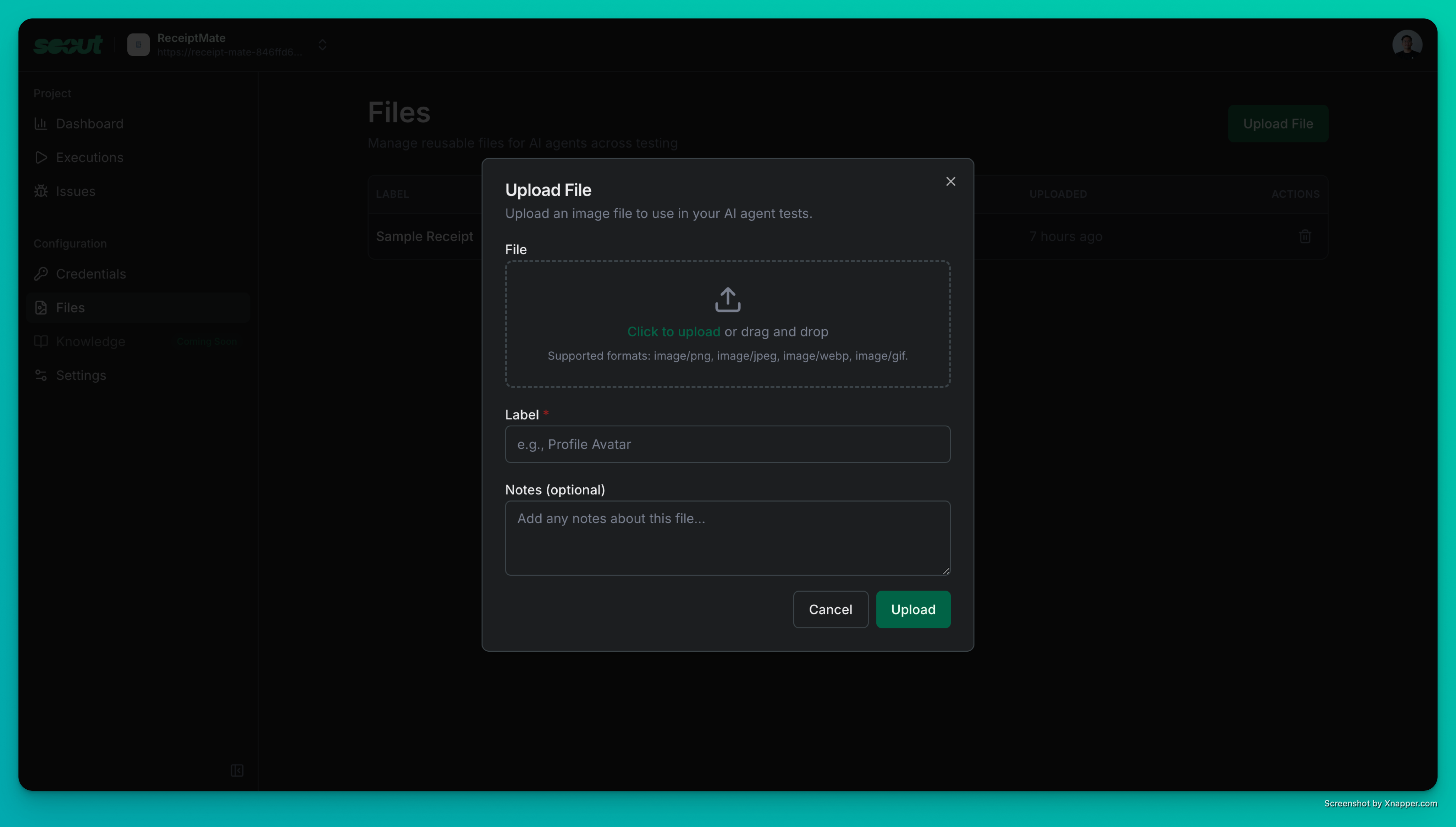
- Navigate to your project settings
- Select the Files tab
- Click Upload File
- Choose an image from your computer
- Add a descriptive label (e.g., “Sample Receipt”, “Test Profile Photo”)
- Optionally add notes about the file
- Click Upload
Best practices
Use realistic test data
Use realistic test data
Upload images that resemble what real users would submit. A sample receipt image tests your receipt scanner better than a random photo.
Cover edge cases
Cover edge cases
Include files that test boundaries: images near the size limit, different aspect ratios, various formats. This helps Scout find validation issues.
Label files clearly
Label files clearly
Use descriptive labels like “Large JPEG - 4.5MB” or “Portrait Photo - PNG” so you can easily identify files later.
Add context in notes
Add context in notes
Document what each file is meant to test. For example: “Use for profile photo uploads” or “Tests receipt OCR feature”.
How Scout uses files
During an exploration, when Scout encounters a file upload form:- Identifies the upload input and accepted file types
- Selects an appropriate file from your project’s uploaded files
- Submits the upload and verifies the response
- Reports any errors or unexpected behavior as issues
Scout intelligently matches files to upload contexts based on accepted MIME types and file requirements. Having a variety of file types and sizes gives Scout more options to test thoroughly.
Managing files
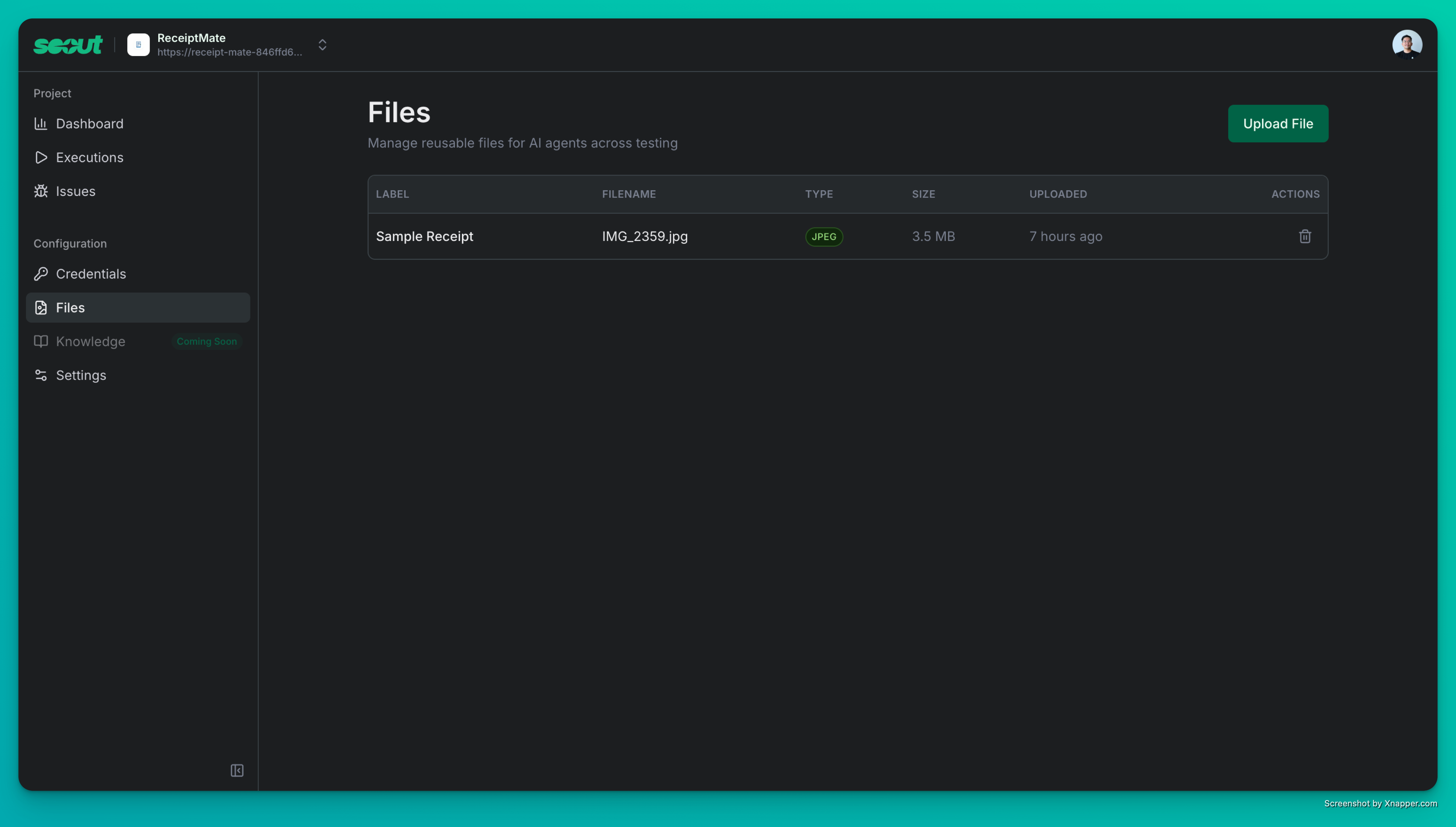
- View all uploaded files with their labels, types, and sizes
- See when each file was uploaded
- Delete files you no longer need
File storage
Uploaded files are stored securely and associated with your project. They persist across explorations and can be reused as many times as needed.Files are project-specific. Each project maintains its own file library, so you can tailor test assets to each application you’re testing.