

Issue categories
Scout classifies issues into five categories:Severity levels
Each issue is assigned a severity to help you prioritize:Critical
Severe problems that block core functionality or pose significant security risks. Address immediately.
High
Important issues affecting user experience or application stability. Plan to fix soon.
Medium
Notable problems that should be addressed but aren’t urgent. Add to your backlog.
Low
Minor issues or suggestions for improvement. Fix when convenient.
Issue statuses
Track resolution progress with three statuses:- Open — Issue needs attention. This is the default status when Scout discovers a problem.
- Resolved — Issue has been fixed. Mark issues resolved after deploying a fix.
- Dismissed — Issue is intentionally ignored. Use for false positives or accepted risks.
Viewing issues
Project issues list
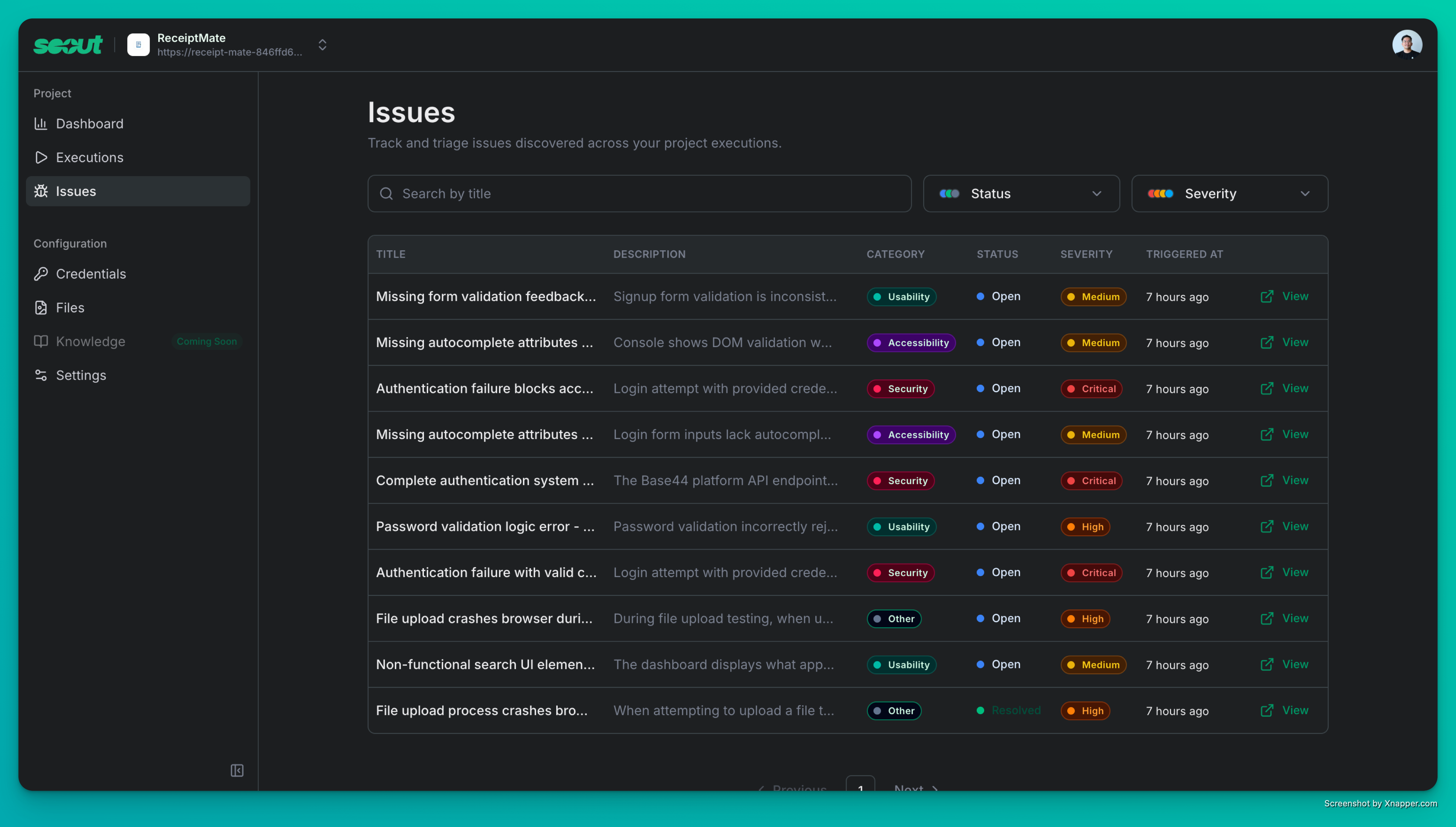
- Search by title to find specific issues
- Filter by status (Open, Resolved, Dismissed)
- Filter by severity (Critical, High, Medium, Low)
- Filter by category (Accessibility, Security, etc.)
- Sort by when issues were discovered
Issue details
Click any issue to see the full details:Summary
Summary
A brief description of what Scout found and why it’s a problem.
Impact
Impact
Bullet points explaining how this issue affects users or your application.
Reproduction steps
Reproduction steps
The sequence of actions Scout took to discover the issue. This helps you reproduce and verify the problem.
How to fix
How to fix
Guidance on resolving the issue, tailored to your specific context.
Managing issues
Update severity
If Scout’s initial severity assessment doesn’t match your priorities, you can adjust it. Click the severity dropdown on any issue to change it.Resolve issues
After fixing an issue:- Open the issue details
- Click Resolve
- The issue moves to Resolved status
Dismiss issues
For false positives or accepted risks:- Open the issue details
- Click Dismiss
- Optionally add a reason for dismissing
Fix with coding agents
New in v0.11.0: Go from bug discovery to bug fix in one click.
- Open the issue details
- Click Fix with Agent
- Choose your agent — Cursor, Codex, or Windsurf
- The agent launches with the bug context (summary, reproduction steps, suggested fix) pre-loaded
Verify bugs by re-running related flows
You can verify whether a bug is reproducible by re-running only the specific flow that triggered it. From the web UI:- Open the issue details
- Click Verify Bug
- Scout re-runs only the specific flow that triggered the issue
- Whether the bug is consistently reproducible
- Whether your fix resolved the issue
- Whether the bug was a one-time occurrence
Best practices
Triage regularly
Triage regularly
Review new issues after each exploration. Quick triage keeps your issue list actionable and prevents important problems from getting lost.
Start with Critical and High
Start with Critical and High
Focus on the most severe issues first. These typically have the biggest impact on users and may indicate broader problems.
Use filters effectively
Use filters effectively
Filter by category when working on specific areas. For example, filter to Security issues before a release or Accessibility issues during an audit.
Document dismissals
Document dismissals
When dismissing issues, add a reason. This helps teammates understand why an issue was ignored and prevents re-discovery confusion.
Track trends over time
Track trends over time
Notice patterns in your issues. Repeated accessibility problems might indicate a need for developer training. Recurring security issues might suggest architecture improvements.